


We Call - WiFi Calling
4.2132.00 Reviews
App Specs
- Version
- 1.6.6
- Updated On
- License
- Free
- Downloads
- 1,000,000+
- Developer
- Hangout Studio
- Categories
- Communication
- Platform
- Android
Screenshots
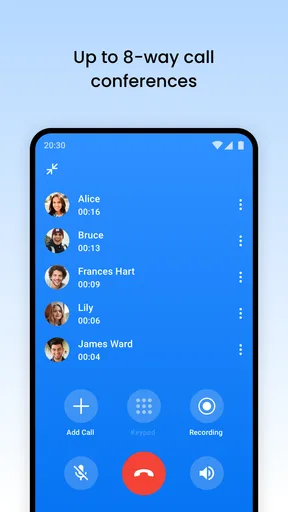
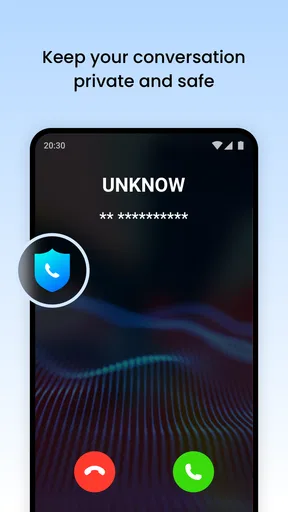
 Analysis by AppCompare
Sharing a phone at home can make a simple call more complicated than it needs to be. Someone wants to reach a relative from a room with weak reception, while another person needs the handset for something else. We Call - WiFi Calling is aimed at people who want to make calls over Wi-Fi, and I can see why that could help in a household where mobile coverage is unreliable. It is a communication app from Hangout Studio, and its appeal is practical rather than flashy: it gives you another way to place a call when a stable Wi-Fi connection is available.
Where it fits in a shared household
Picture a familiar situation: you are at home, the mobile signal is poor, and you need to call someone about a delivery or check in with a family member. If Wi-Fi is working well, an app like this can be a useful alternative to struggling through a cellular call. I found that kind of use more convincing than treating it as a replacement for every calling option. It makes sense as a backup for particular rooms, buildings, or moments when reception is the weak link.
For shared-device use, the important question is not just whether the call works, but whose account and contacts are being used. I would keep the app associated with the person who manages that phone and avoid treating a shared handset as though every household member has a separate calling identity. Before letting someone else use it, I would check which account is active and what contact information is visible. That small bit of housekeeping can prevent confusion when several people take turns with one device.
Set expectations before relying on it
Wi-Fi calling depends on the connection available where you are. A strong connection can make a call feel much more dependable than a weak cellular signal, but moving between rooms, using a congested network, or losing internet access can change the experience. I would try it in the exact spot where calls usually fail, then make a short test call before relying on it for an appointment, a work conversation, or anything time-sensitive.
That test is also a practical way to decide whether this app belongs in your regular routine. If it works well in the kitchen but not in a back bedroom, you can use it selectively instead of assuming coverage is equally good throughout the home. I would also keep an ordinary calling option available when possible; Wi-Fi calling is most useful as a solution to a specific signal problem, not as a reason to stop thinking about connectivity altogether.
Coordination without blurring account boundaries
Families and housemates often coordinate calls informally: one person asks another to phone a relative, or someone borrows a device to make a quick call. That can work, but a calling app is tied to the identity and setup on the device, so it is worth agreeing on simple boundaries. Decide who answers calls, whether other people may place calls from the app, and how to handle contacts that are personal rather than shared.
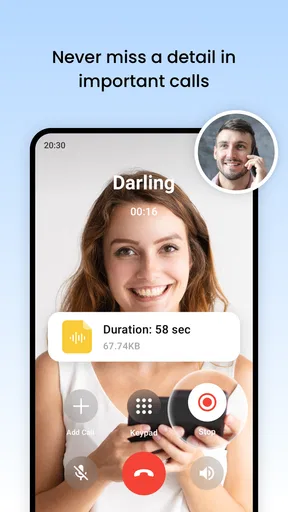
I would be especially careful with call recording. It can help someone keep track of an important conversation, but recording is not a casual setting to leave on without thought. Make sure everyone involved understands when it is being used and follow the rules that apply where you are. For a household, the sensible approach is to use it only for a clear purpose and to respect the privacy of the person on the other end.
Worth Reading Before You Choose

EA SPORTS FC Mobile 26 Is a Bigger Football Game, but It Takes Time

Flipboard Shows What News Apps Must Do Beyond the Feed

Switching to Android Auto Means Rethinking Your Driving Routine

Google Calendar Makes a Crowded Week Easier to Manage

Ludo King Makes the Most of the Minutes Between Plans

Baby Panda World Brings Quick Play to Modern Phones, but Its Game Library Feels Busy
Age, trust, and everyday suitability
The app is rated for Everyone, which makes its age context broad, but that does not remove the need for adult guidance when a child uses a shared phone. I would show a younger user how to place a call, explain which contacts are appropriate, and make clear that caller ID and recording choices affect other people too. The app is a communication tool, not a substitute for a household agreement about who can call whom or when.
It may suit adults who want a backup calling option, people working in a building with inconsistent cellular reception, or households that already rely on Wi-Fi for day-to-day connectivity. It is less appealing if you need a dependable emergency plan, have unreliable internet, or want a fully separate profile for every person using one device. In those cases, your phone’s regular calling service or a different arrangement may be a better fit.
How it compares with familiar calling options
Compared with a standard cellular call, the main reason to try this app is the possibility of avoiding a weak mobile signal by using Wi-Fi. Compared with internet-based messaging apps, its focus is more directly on making calls rather than building a broader chat routine. Which option is better depends on the person you need to reach: if they already use the same messaging service, that may be simpler; if your usual call is disrupted by poor reception at home, testing a Wi-Fi calling option is a more targeted response.
I would not switch everyone in a household over at once. Start with the person who most often runs into dropped or unclear calls, check how the app fits their contacts and calling habits, and then decide whether anyone else needs it. That approach keeps the learning curve small and makes it easier to spot whether the real issue is cellular coverage, the home Wi-Fi, or simply the location of the device.
Getting Started with We Call
First things first, downloading We Call - WiFi Calling was a breeze. It’s available on both Android and iOS, making it super accessible. The installation was quick, and I was up and running in no time. The app greets you with a clean, intuitive interface, which I always appreciate. No one likes fumbling around trying to figure out an app’s layout, right?
Setup and Initial Impressions
Setting up my account was straightforward. You just need to verify your number, and you're set. The app walks you through the entire process with clear instructions, which is pretty handy if you're not the most tech-savvy person.
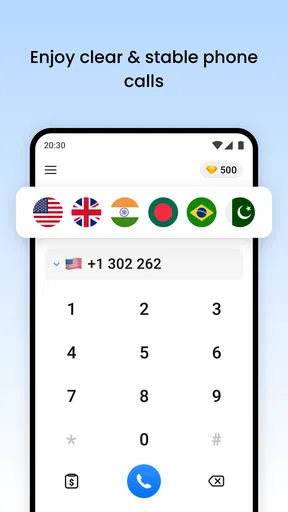
Once set up, I was greeted by a sleek home screen showing my recent calls and contacts. It’s minimalistic but functional. I could easily navigate through different sections, which is a win in my book. Simplicity doesn’t mean lack of features here.
WiFi Calling Features
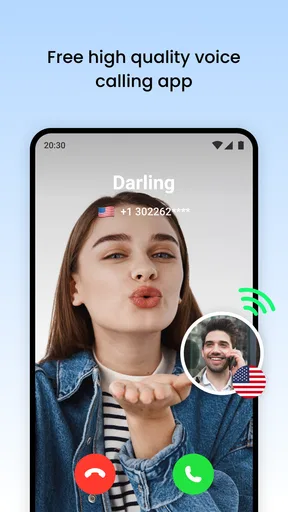
Now, the star of the show: WiFi calling. I tested it out in various locations with different WiFi strengths, and I must say, it performed admirably. The calls were crystal clear and devoid of the usual hiccups you get with weak cellular signals.
It’s perfect for those times when you’re at home, in a cafe, or anywhere with a stable WiFi connection. I found it particularly useful in my office, where my cell reception is notoriously spotty. No more dropped calls or annoying static – just seamless conversations.
Additional Perks
Beyond just WiFi calling, the app offers some neat features. You can record calls, which is great for those of us who like to keep track of important conversations. There’s also an option to sync contacts effortlessly, so you don’t have to manually import them.
Another cool feature is the ability to customize caller ID settings. You can choose what your callers see when you call them, which adds a nice personal touch. It’s little things like this that make the app stand out.
User Experience
Throughout my time using the app, it was smooth sailing. The developers have clearly put a lot of thought into making the user experience as seamless as possible. The app didn’t crash once, and the transitions between screens were smooth.
I also noticed that battery consumption was minimal, which is a huge plus. Nobody wants an app that drains their battery faster than you can say "WiFi."
Choosing it for your routine
There are a few practical details I would settle before making this a household habit. The app is free to install, though in-app purchases range from $0.99 to $19.99 per item, so I would review any purchase prompt carefully rather than assuming every option is included at no cost. Its average rating is 4.1 from around 2.1K ratings, with 87 written reviews; that gives a newcomer some context, but I would still judge it by a test call on the actual network and device I plan to use.
It has reached over 500K installs, and the current version is 1.5.20, with Android 7.0 as the minimum operating system requirement. Those details make it easier to check basic compatibility before setting up a shared phone. The app is free and rated Everyone, but neither point means every feature or choice is automatically suitable for every household. I would set it up with the main user present, confirm the number, and make sure that person is comfortable with the contact and caller ID options.
A useful low-friction workflow is to keep a short list of the situations where Wi-Fi calling helps, rather than asking everyone to change how they call. For example, one adult could use it for calls from a home office with poor mobile reception, while the rest of the household continues using the methods they already understand. If the app is only useful in one location, that is still a real benefit; there is no need to turn a targeted fix into a household-wide migration.
Contact syncing is convenient, but it also deserves a quick check on a shared device. Before enabling it, I would think about whether the device contains contacts that belong only to one person. A tidy contact list makes calling easier; a list that mixes work, personal, and family entries can make it harder to choose the right person and can reveal more than intended to someone borrowing the phone. The practical tip is simple: decide whose contacts should appear before syncing, not after everyone has started using the device.
Caller ID customization is another setting worth checking with the person who owns the account. It affects how a call is presented to the person receiving it, so I would make sure the displayed identity is recognizable and appropriate for the calls being made. That matters most when someone uses the app for both personal and work conversations, or when another household member borrows the phone. A quick test with someone you know can help confirm that the outgoing call looks as expected.
Recording can be useful for remembering details from a conversation, but it is not a substitute for taking notes or asking someone to repeat information. I would reserve it for cases where there is a clear reason, explain it to the other person, and check local requirements first. If the goal is simply to remember a pickup time or an appointment detail, writing it down may be less intrusive and easier to manage.
Who should try it—and who may prefer another option
I would recommend giving it a trial if weak cellular reception is a recurring nuisance and the household has dependable Wi-Fi in the places where calls happen. It is also a reasonable option for someone who wants a straightforward calling interface and values having recent calls and contacts together. The strongest case is a predictable one: you know where the signal problem occurs, you can test the app there, and you have another way to call if the internet drops.
I would skip it as a primary solution if your home internet is itself unreliable, if several people need distinct calling identities on the same device, or if you are looking for a full family-management system. It is also not the choice I would rely on as the only route for urgent calls. In those situations, keep the regular phone service available and consider an option better suited to separate accounts or household rules.
For an everyday check, I would place a brief call from the room with the weakest reception, then try again from a second spot and listen for whether the conversation stays clear. Repeat at the time of day you normally make calls, since the experience of a busy home network can differ from a quiet test. If the result is inconsistent, compare it with your normal calling method before deciding which one to use for an important conversation.
Final Thoughts
All in all, We Call - WiFi Calling delivers on its promises. It’s a fantastic tool for anyone looking to improve their call quality, especially in areas with poor cellular reception. Whether you’re calling for business or catching up with friends, this app ensures you’re heard loud and clear.
So, if you’re tired of dropped calls and muffled voices, give We Call - WiFi Calling a shot. It’s like having a secret weapon in your pocket for those all-important conversations.
A sensible household verdict
My recommendation is to treat it as a focused backup, not a universal fix. When a verified account, a familiar contact list, and steady Wi-Fi come together, it can make a frustrating call easier; when accounts are shared without clear boundaries or the network is shaky, the convenience can disappear. Start with one user and one troublesome location, agree on who may use the account, and keep another calling route available. That is the most realistic way to find out whether it earns a place in your household routine.
Pros
- Clear call quality over WiFi networks.
- Easy integration with existing contacts.
- Saves on international call charges.
- No need for a SIM card to make calls.
- User-friendly interface and setup.
Cons
- Requires a stable WiFi connection.
- Limited features in the free version.
- Not available in all countries.
- Potential privacy concerns with data.
- May drain battery faster on older devices.
FAQs for We Call - WiFi Calling
What is We Call - WiFi Calling and how does it work?
We Call - WiFi Calling is an app that enables users to make calls over a WiFi connection instead of using cellular networks. This can be especially beneficial in areas with poor cellular reception. The app uses VoIP (Voice over Internet Protocol) technology to transmit voice data over the internet, ensuring clear and uninterrupted calls.
Is We Call - WiFi Calling compatible with all devices?
We Call - WiFi Calling is designed to work with most Android and iOS devices. However, it's important to ensure your device's operating system is up-to-date to avoid compatibility issues. Some older models may not support certain features, so checking the app's requirements on the respective app store is recommended.
Does using We Call - WiFi Calling save on mobile data usage?
Yes, using We Call - WiFi Calling can help reduce your mobile data usage as the app relies on an available WiFi connection for calls. This can be particularly advantageous for users on limited data plans or those aiming to minimize data charges, especially when making international calls.
Are there any costs associated with using We Call - WiFi Calling?
While the app itself may be free to download, some features or international calling options might require in-app purchases or subscriptions. It's advisable to review the pricing structure within the app to understand any potential costs, especially if planning to make frequent international calls.
How secure are calls made through We Call - WiFi Calling?
We Call - WiFi Calling employs encryption to protect the privacy and security of calls made through its platform. However, as with any internet-based service, users should ensure they're connected to secure and trusted WiFi networks to further safeguard their communications from potential security threats.


